Skip to the updates

Changelog

What’s new in Lymi, and what got better.

Follow with RSS
  1. Write a memory hook in the moment

    You can now write a memory hook right under the card while you review, the moment you need one. Lymi offers a draft in grey: press Tab to keep it, or write your own. A draft you keep as it is carries the AI badge.

    Once the answer shows, the card also has a small menu, so you can edit it, look at its history or archive it without leaving the review.

    Forgotten cards come back once

    A card you mark Forgot now comes back once, about twenty cards later, instead of several times in a row. Forget it again and it waits until tomorrow. A longer gap is a better test of whether you remember it, and you no longer see the same few cards over and over.

    Fixes and improvements

    • Easy on a card you’ve already seen today counts as Good, because you saw the answer a moment ago.
    • Until you connect an AI assistant, the sidebar offers Claude, ChatGPT, Gemini and Grok, each with its setup guide.
    • Assistant views keep to what’s due and one card at a time, rather than long lists.
    • lymi.app no longer shows a cookie banner. Visits are counted without storing anything on your device.
  2. A welcome for new accounts

    New accounts now start with a short welcome instead of an empty screen. Lymi asks what you’re learning, which language, and how much time you have a day. Then it offers a ready-made deck that fits, or a way to bring your own: an Anki or Mochi file, a lesson from Claude or ChatGPT, or cards you type yourself. Pick a deck and your first review starts right away.

    If you signed up from a join link or a ready-made deck, you skip the questions you don’t need. Lymi shows the deck you came for, asks how much time a day suits you, and opens its review.

    Fixes and improvements

    • When you import from Anki, you choose which decks to bring, and Lymi asks one question per screen.
    • Japanese decks made with Lapis import with their meanings in the right place.
    • In Insights, the week ahead counts each card once, even when it’s asked both ways.
    • Settings explains connected apps in plain words, with an example of what to ask.
  3. Lymi in more AI assistants

    That chess term you just used, add it to my deck.
    Added to Chess, with the meaning and an example.Chess · newzugzwangAny move you make makes your position worse
    And what am I due to review tonight?
    Seven cards. Four Finnish, two chess terms, one from that signal-processing paper.

    Lymi now works with more AI assistants, and better with the ones it already knew. Send your assistant a photo of your notes, a transcript or a page from a textbook, and ask it to make cards. They land in Lymi ready to review, and Activity lists every one.

    • ChatGPT has Lymi in its sidebar, with what’s due in each deck, and you can @-mention a deck or a card in a conversation.
    • Claude, ChatGPT and Gemini show small views of what’s due, how a deck is doing, or the card you asked about.
    • Cursor and Grok can connect too, and the Gemini app is named as itself when it does.
    • The Lymi plugin gives assistants ready-made skills: turning a lesson into cards, tidying cards, practising, and a weekly check-in.

    Each assistant has a setup guide at lymi.app/docs/mcp.

  4. Native voices for 14 languages

    Hearing a word said well matters as much as reading it. Pronunciation in 14 languages now uses a native voice for each language: Arabic, Brazilian Portuguese, Danish, Dutch, Estonian, Finnish, French, German, Greek, Italian, Japanese, Mandarin Chinese, Russian and Ukrainian. Every other language uses a clear general voice that knows which language it’s speaking, so words keep their accent.

    There’s nothing to set up. A card you’ve heard before gets its new recording the next time you play it.

    This builds on the voice work from September, when pronunciation moved to voices that speak each card’s own language. Before that, an Estonian word could come out sounding English.

  5. A warmer dark mode

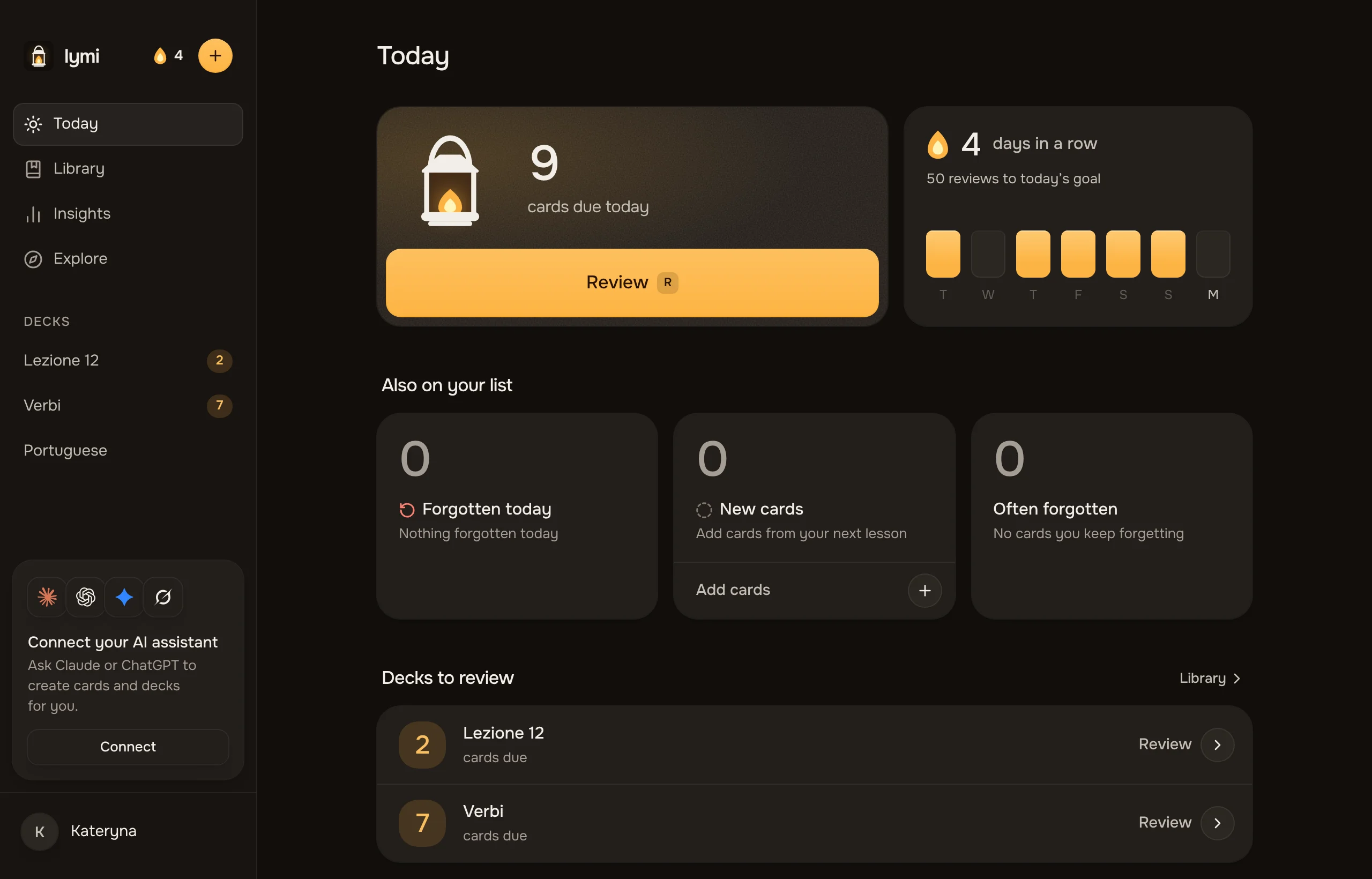
    Today in dark mode, with the lantern’s light pooling on its panel and the plates sitting just above the page.Today in dark mode, with the lantern’s light pooling on its panel and the plates sitting just above the page.

    Dark mode has more depth. Cards and panels now sit slightly above the page, as if the lantern were lighting them, while the light theme stays flat and calm. Progress bars and the seven lights look lit from inside, and the lantern on Today throws a soft pool of light. Selected tabs and options are easier to spot in the dark.

    Fixes and improvements

    • In review, the deck sits at the top of the card and the section under the answer.
    • The AI badge shows once under the answer, rather than beside every field.
  6. Find decks by language and subject

    Explore is easier to find your way around. Decks sit on a shelf for each language they teach, most decks first, then on shelves for subjects such as Science, Technology, Nature, Arts and Citizenship. A bar at the top stays with you as you scroll, so you can jump to any shelf. A long shelf shows one row, and See all opens its own page.

    Decks also carry tags, such as Travel or HSK 1, and search finds them. At the end of every deck’s page, More like this shows related decks.

    Each language’s Explore lists only the decks you can read in it: decks explained in that language, plus, on the Ukrainian and Russian pages, decks explained in English.

    Fixes and improvements

    • Deck colours read clearly in dark mode.
    • Line breaks in card text show on deck pages.
  7. Memory hooks

    Some cards just don’t stick. A memory hook can help: a short phrase in your own language that leads you back to the term, like a word that sounds similar or a picture in your mind.

    You can give any card a hook. In review, it waits under the card. Press Peek at your hook, or H on a keyboard, to see it before you answer. Since you had help, Easy isn’t available for that card this time, because Easy means you remembered on your own. After the answer, Show hook brings it up without changing anything.

    When a card keeps being forgotten, Lymi offers to help you write a hook for it, starting from a draft you can change.

  8. Your whole year in Insights

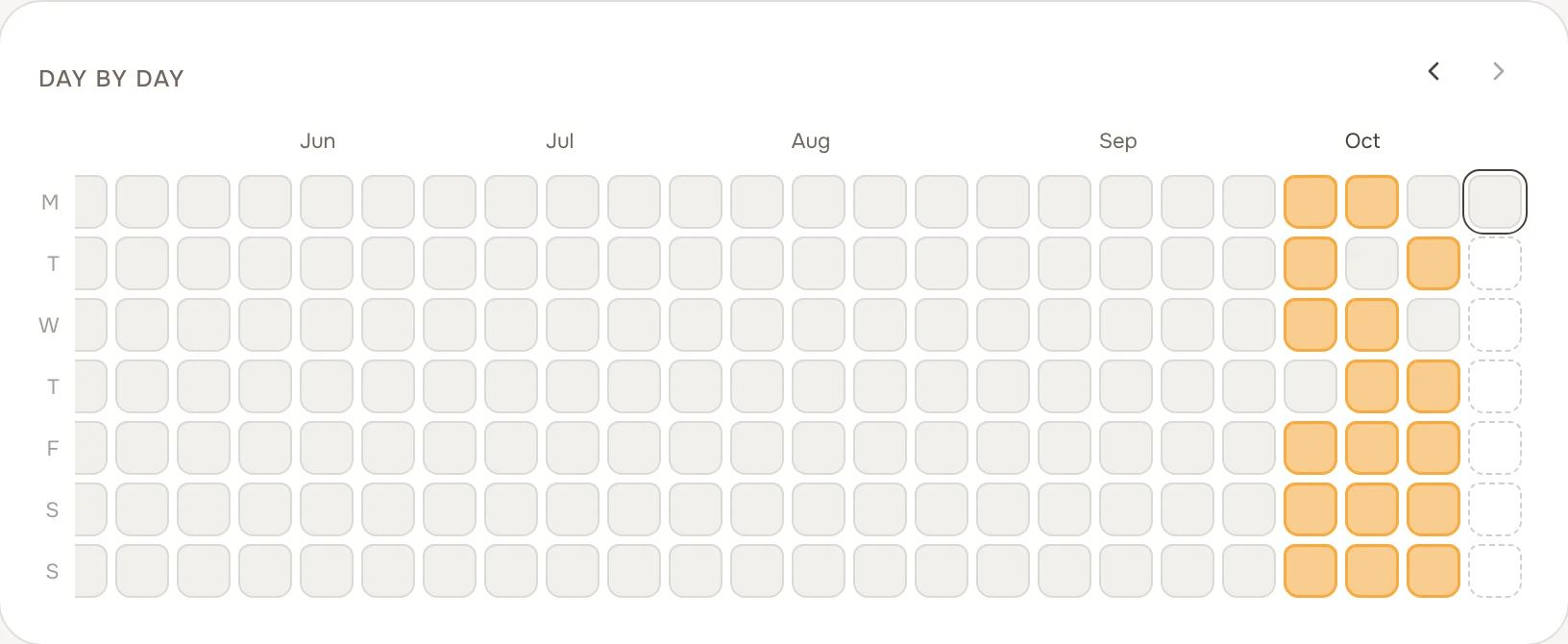
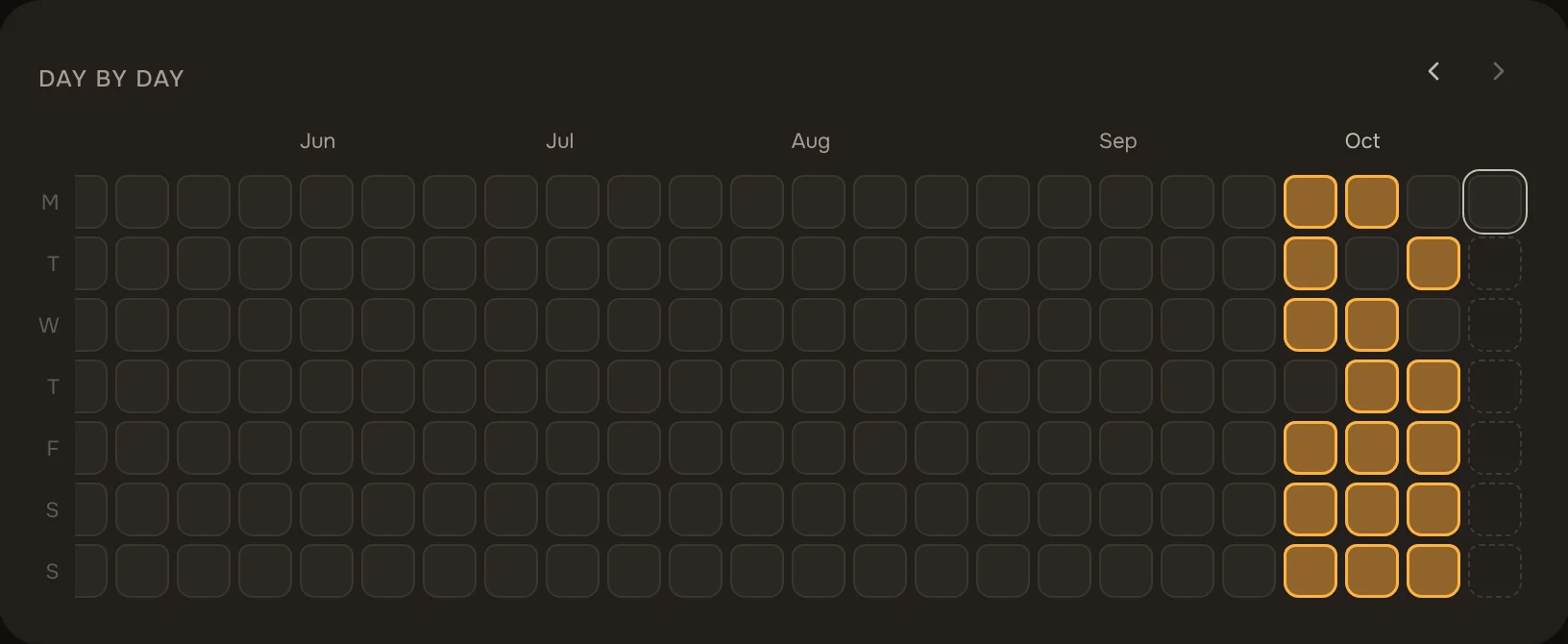
    The day-by-day grid from Insights, with each day shaded by how much of its goal was reached.The day-by-day grid from Insights, with each day shaded by how much of its goal was reached.

    The monthly bars in Insights are now a grid of days, with a column for each week and a row for each weekday, going back at least a year. Each day is shaded by how much of that day’s goal you reached, in the same three steps as the seven lights on Today. Point at a day, or tap it, to see how many reviews you did.

    Your streak and Insights now read the same days, so they always agree. Reviews you brought in with an import show in the grid too, though they never count toward a goal.

    Fixes and improvements

    • A card you keep forgetting no longer loops within one review. It comes back after longer gaps, and never straight after itself.
    • After you act on something, focus stays where it was, so the keyboard and screen readers keep their place.
    • Buttons are easier to hit on touch screens, and the phone’s status bar follows your theme.
    • On an iPhone, form buttons no longer cover the field you’re typing in when the keyboard comes up.
    • Changes made with the keyboard happen without animation, and Reduce Motion covers more of the app.
    • Ready-made decks preview their cards the way you’ll be asked them, picture first where there is one.
  9. Reviews that run to the end

    A review now runs until everything you opened it for is done: your whole day, one deck, one section or a series. If you started from the Review button, it pauses once when you reach your daily goal, so you can stop there or carry on. Every ending shows the same screen with what you did today.

    The lantern lights up with your first review of the day and grows as you go, and every grade sends up a few sparks.

    You can also review just one section of a deck.

    Your edits wait when you’re offline

    Add, edit or archive cards with no connection, and Lymi keeps the changes on your device and sends them in order when you’re back online. Reviews already worked offline. Now the rest of your changes do too.

    Fixes and improvements

    • On a phone, every screen has the same top bar and a clear way back.
    • The review card shows the deck and section it came from.
  10. Rest days

    Some days don’t go to plan. Now one short day a week won’t break your streak. If a day ends below your daily goal, it becomes a rest day, as long as you haven’t had another in the six days before it. A rest day keeps your streak going without adding to it.

    There’s nothing to plan or switch on. The streak’s calendar marks a rest day with a dashed line, and Today mentions it the morning after.

    Fixes and improvements

    • Lymi checks for a new version when you come back to the app, so an open tab doesn’t fall behind.
    • The streak window has a tidier layout and a clearer title.
  11. Invite people to your deck

    You can now invite someone to a deck by email. Lymi sends them a link that works for their address only, and if they don’t have an account yet, they make one as they join.

    Deck settings has a People section with everyone who has joined, and everyone you’ve invited who hasn’t yet. You can remove someone or cancel an invitation from there.

    If you joined someone else’s deck, it now works the way you’d expect. You study it, About this deck tells you what’s in it and who made it, and Leave deck takes it out of your Library. Only the person who made the deck changes its cards. Your own reviews stay yours either way.

    Fixes and improvements

    • Text across the app is shorter and plainer, in all three languages.
  12. Export, Activity and Archived

    Three things that make Lymi easier to trust with years of learning.

    Export

    Export one deck or your whole library from the deck menu or Settings. Choose an Anki package, which Anki and Mochi open with your schedules, history and pictures, or a Lymi file, which brings everything back into Lymi without losing anything. The download stays ready for a day. A single deck can also go to a spreadsheet.

    Activity

    Activity lists everything that came into your decks from outside the app: cards an assistant added, what Lymi’s AI filled in, imports, the files you exported, and who joined or left your shared decks. Each row names the app behind it. Open one to look over the cards it wrote, then edit or archive any of them.

    Archived

    Archived lists the decks and cards you’ve archived, and brings any of them back with one press.

  13. Lymi fills in the rest

    Term
    kuulua
    Lesson
    Meaning
    To belong; to be heard
    AI
    Example
    Haluan kuulua tähän joukkoon.
    AI
    Say it
    KOO-loo-ah
    AI

    Adding a card is now as quick as typing the term. Within a few seconds, Lymi fills in what’s missing: the meaning, an example, the pronunciation and the language. While it works, the empty fields shimmer, then fill in without a reload.

    Lymi never changes text that’s already there. Everything it wrote carries a small violet AI badge, so you always know what came from your lesson and what didn’t. Edit a field and it becomes yours, and the badge goes.

    If a card still has empty fields later, choose Enrich from its menu.

    Fixes and improvements

    • The AI badge marks only what Lymi itself wrote. Text an assistant or another app sends counts as yours, and Activity shows where it came from.
  14. Ready-made decks in Explore

    Not everything has to start from your own notes. Explore is a collection of ready-made decks for languages and other subjects. Browse it at lymi.app/explore, or inside the app under Insights. Adding a deck takes one press, and it lands in Library ready to review.

    Each deck has its own page with its sections and every card, and a few cards you can try before you add it.

    Some decks come in more than one language. When you add one, you choose which language its meanings are in, and it stays that way even if you change Lymi’s language later.

    Fixes and improvements

    • Ready-made decks show who made them, in Explore and in Library.
    • Every deck on a shelf is in view, with no sideways scrolling.
  15. Lymi is open to everyone

    Until now, Lymi was invite-only. From today, anyone can create an account, for free, with no waiting list.

    Sign up with Google, or with an email address and a password. If you forget your password, you can reset it by email.

    Lymi is open source, too. The code is public on GitHub under the AGPL licence, so anyone can see how Lymi works and how it treats your data.

    Fixes and improvements

    • Send feedback from the menu behind your name: a bug, an idea or anything else. It goes straight to the people who make Lymi, and we answer by email.
    • The privacy policy, terms and support page are written in plain language.
  16. Series and sections

    The next section opens at 80% known

    Two new ways to give your cards some order.

    A series groups decks that belong together, like the levels of a course. Review the whole series at once, or one deck at a time. In Library, each series is a heading over its decks.

    A section is one part of a deck, such as one lesson. Sections open one after another: once every card in the current section has come up and 80% are known, the next one opens. If the deck is yours, you can choose to start each section yourself, or open them all at once. Everyone who studies a shared deck sees the same sections.

    Decks without a series or sections work exactly as before.

    Fixes and improvements

    • A deck lists its cards like a glossary, with filters for state and sorting by when each card comes back.
    • On a large screen, a card opens beside the list, so you keep your place.
  17. Bring your decks from Anki and Mochi

    Import

    Spanish.apkg · 14 MB

    What comes across

    1,240cards
    16,402past reviews
    4decks
    • Cards keep the due dates they had in Anki.
    • 180 cards bring their pictures.

    Moving to Lymi no longer means starting over. Import an Anki package or a Mochi export, and your decks, cards, tags, pictures and review history come with it. Cards you already know keep their schedule, so they don’t come back as new.

    Before anything is added, Lymi shows a few of your own cards and asks whether they look right, so each meaning lands where it should. The import carries on if you close the app, and Activity lists it when it’s done. Archiving an import archives exactly the cards it added.

    Your imported reviews show up in Insights, but they don’t count toward today’s goal or your streak. Start with Moving from Anki or Moving from Mochi.

    Fixes and improvements

    • After you grade a card, the next one appears straight away, even on a slow connection.
    • Long cards stay readable on every screen, and the grade buttons always stay in reach.
    • Meanings and examples can be up to 2,000 characters long.
  18. A clearer Today

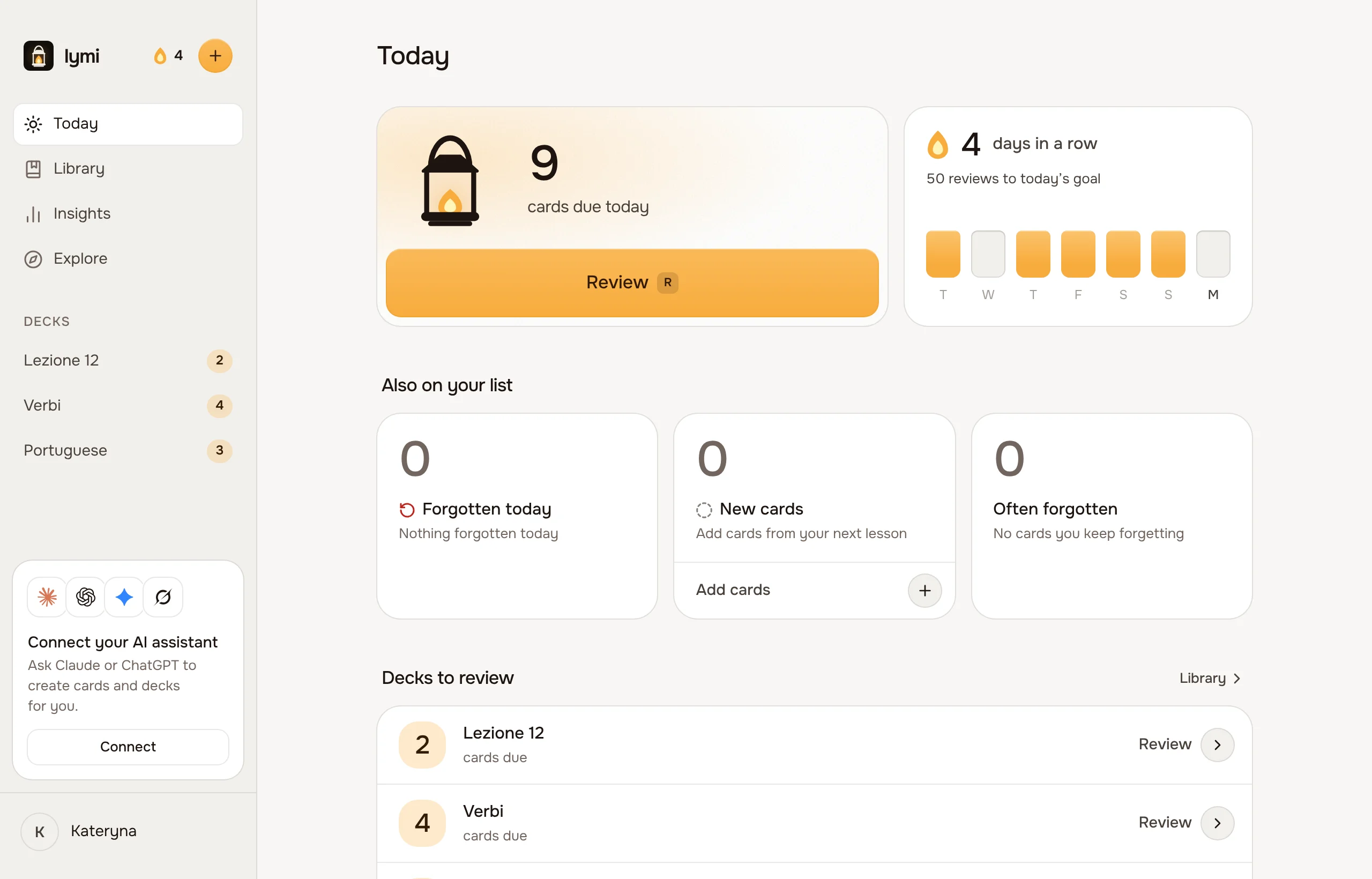
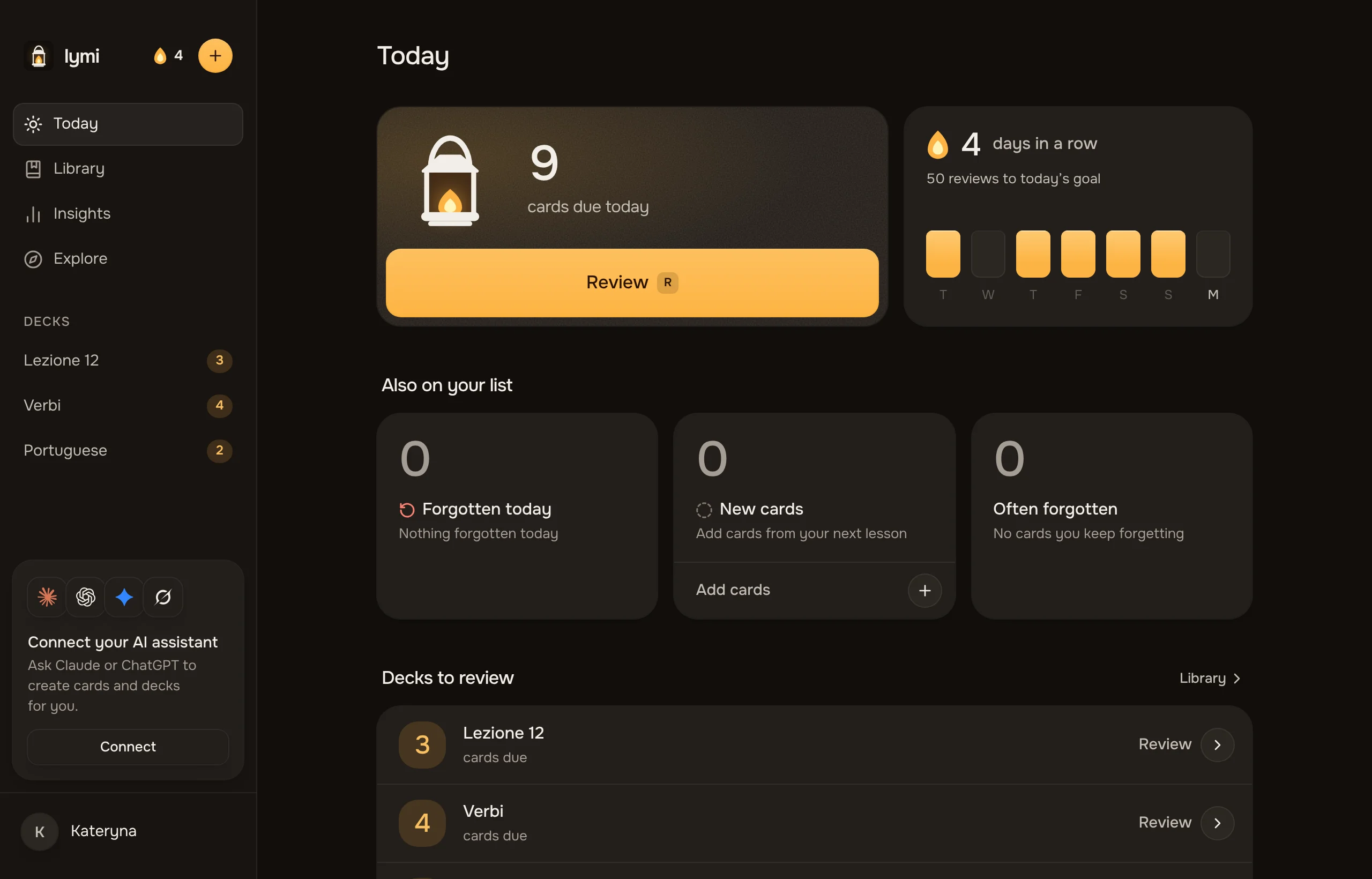
    Today on a computer, with the cards due and a Review button, the streak beside them and three rounds below.Today on a computer, with the cards due and a Review button, the streak beside them and three rounds below.

    Today now leads with what’s due and one Review button, with your streak right beside it. Below them are three short rounds for when you want to focus: the cards you forgot today, new cards, and the cards that keep slipping. If you study more than one deck, each has its own row with what’s due in it.

    Your daily goal keeps your streak

    Choose how many reviews make a good day. Reach that number, or finish everything that’s due, and the day counts toward your streak. Every grade counts, Forgot included. The lantern’s flame grows with each review and is full once you reach your goal.

    When you get there, the review stops on its own screen. Today’s count rolls in and your week fills in a day at a time. From there you can go over the cards you forgot, carry on, or call it a day.

    A second chance in the same review

    A card you forget now comes back a few cards later in the same review, so you get another go while it’s fresh.

    Fixes and improvements

    • A card’s schedule shows as a timeline, so you can see when it comes back and how each review went.
    • Until your first review, Today shows a short getting started guide.
  19. Pictures on cards, and every field in the app

    A card can now have a picture. Add one when you make the card or later, and it shows with the answer in review. You can also review from the picture itself: Lymi shows it, and you recall the term or the meaning.

    Each picture has a short description of what it shows. It’s what a screen reader reads, and what review shows if the picture can’t load.

    Every field in one form

    Adding and editing a card now share one form with every field: meaning, example, pronunciation, notes, picture, language, source, tags and how the card is asked. On a computer the less common fields wait under More fields. On a phone, each one opens from a row of chips.

    Fixes and improvements

    • Turn on Create more to add several cards in a row without closing the form.
    • Close a form you filled in by mistake, and Undo brings it back.
    • Notes can use bold, italics and lists.
    • Menus in Ukrainian and Russian no longer cut off their labels.
  20. Share a deck with a link

    Join linkAnyone with the link can join this deck.
    my.lymi.app/join/k7Qm2xCopy

    12 learners joined

    A deck can now be shared. Turn on its join link in deck settings, send it to your class or a friend, and they can join with one tap. Everyone studies the same cards, and each person keeps their own schedule and progress.

    The join page shows who shared the deck, how many cards it holds and a few of its cards drifting past, so people know what they’re joining. You can turn the link off at any time, and the people who already joined keep the deck.

    In Library, a deck someone shared with you shows their name under it.

    Fixes and improvements

    • Your browser tab now names the screen you’re on, such as Today or the deck you have open.
  21. Lymi in Ukrainian and Russian

    Lymi now speaks Ukrainian and Russian as well as English. The first time you sign in, it follows your browser’s language, and you can change it any time in Settings. Meanings and reminders follow the language you choose.

    lymi.app has Ukrainian and Russian pages too, written for the people who read them rather than translated word for word.

    Fixes and improvements

    • Lymi now says “cards” instead of “words”, since a card can hold a phrase or anything else you want to remember.
    • Revealing an answer feels calmer: the term glides up and the answer settles in under it.
    • A deck opens on what’s due, with its new, learning and known cards counted.
    • Add your own photo in Settings, or keep the one from your Google account.
    • The sidebar highlights only the deck you have open.
  22. Insights, and a fresh Today and Library

    Insights is a new screen that answers four questions: is it sticking, are you keeping it up, what do you know, and what’s coming. Each answer is one number with a plain sentence that explains it, and it already makes sense in your first week, before there’s much history.

    A calmer Today and Library

    Today now asks one question: how many cards are due. The decks with due cards are named under it, and a week of lights shows how your last seven days went. When nothing is due, adding cards takes the lead.

    Library shows each deck with its language, how its cards split between new, learning and known, and what’s due. Open a card to see everything about it, including its whole history.

    Your AI assistant can use Lymi

    Connect Claude, ChatGPT or another assistant that supports MCP, and it can turn your lesson notes into cards, find cards and tidy your decks. Grading stays yours: an assistant can never review for you.

    Fixes and improvements

    • Settings replaces the You screen, and a menu behind your name holds Archived, the docs and sign out.
    • Cards due at the same moment come up in a random order, so the order you added them in doesn’t become a hint.
  23. The first version of Lymi

    Tonight4 due

    Suomi · verb

    kuulua

    Reveal the meaning, then grade the recall.

    Lymi started as a small tool for one learner: a place to keep the words and phrases from each lesson, and a few minutes of review a day to remember them. This is where it began.

    • Today shows how many cards are due, with one button to start.
    • Library holds your decks. Making one takes a few seconds, and its settings choose its language and how its cards are asked.
    • Review shows a card, you try to remember, then you show the answer and say how well you knew it: Forgot, Hard, Good or Easy. Lymi uses FSRS, a modern spaced-repetition method, to decide when the card comes back.
    • Pronunciation plays on every card, in the card’s own language.
    • Reminders arrive once a day on each device where you turn them on.

    Lymi also had a public API from the first day, with keys you make yourself and documentation at lymi.app/docs.